How to Test Shopify Black Friday Discount Codes Before You Launch
Try the sale and welcome offers on the same cart before launch. A few checkout tests can show you what shoppers will see and what the store will charge.
In this guide
The sale email says “25% off,” but a shopper at checkout sees their old welcome offer and starts looking for the missing savings. Or both discounts work, and the store gives away more than anyone signed off on. Both are easy to miss if your only test is typing the new code into an empty checkout.
The quickest useful test is to build a real cart and try the holiday offer, the everyday offer and both together. Write down the outcome you want first. If someone else can't tell you the expected total without opening Shopify, the offer terms probably need another pass.
Start with the cart most likely to surprise you
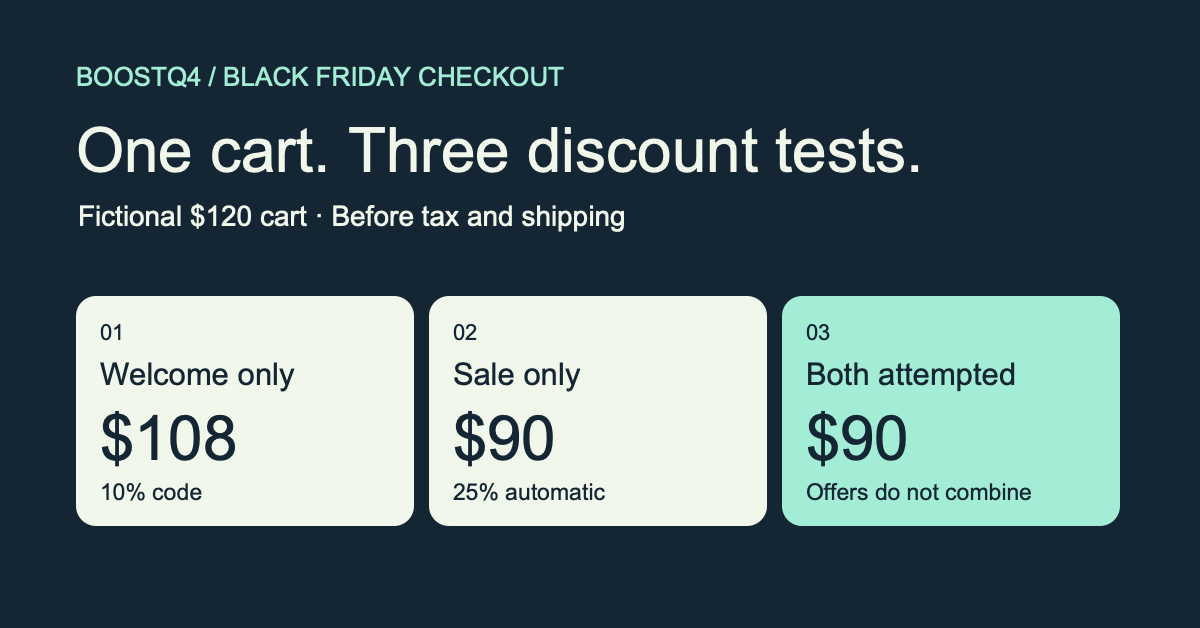
Imagine a kitchenware store with one $120 gift set in the cart. The store plans an automatic 25% order discount for Black Friday and usually gives new shoppers 10% off with WELCOME10. The team wants buyers to get the best eligible offer and has decided against combining the two. For this example, assume one eligible product; the numbers are merchandise totals before tax and shipping.
Test the welcome code on its own before the holiday offer starts. The expected total is $108 for an eligible shopper. Once the holiday offer is active, the cart should show $90 without a code. Finally, try WELCOME10 with the automatic offer active. The target is still $90. Check the visible discount line and any message about the code, not just the final number. A shopper seeing $90 and a message they don't understand may still think they're missing a deal.
Shopify's discount combination rules depend on the types of discount and the settings of each offer. When eligible discounts can't combine, Shopify can select the better discount for the cart. For example, if the two percentage offers above are both configured as combinable order discounts and both qualify on an eligible store, they each calculate against the same $120 subtotal. That would leave $78. Applying the second percentage to the already reduced amount would give $81. Make sure you know which discount class the store or app actually uses before expecting either number.
Check the line between eligible and almost eligible
Suppose the team also offers free shipping starting at a minimum cart value. Use an authorized test shipping address and test one cart just below the qualifying amount and one right at it. If the exact rule is “$100 or more,” $99 should fail and $100 should pass when every other condition matches. If a discount brings the merchandise total below that line, check what the actual shipping setup uses to determine eligibility. A discount code, a shipping rate and an app rule may be configured differently. Use the checkout result to decide what the banner can honestly promise.
Run one exclusion case too. A $100 cart containing an excluded gift set can look identical in a screenshot to a $100 cart containing the eligible one. Test the actual variants and quantities shoppers can choose. For an automatic buy-one-get-one offer, put both the qualifying item and the reward item in the cart, as Shopify's automatic discount instructions specify. Then remove one and confirm the discount disappears.
Shopify: What shoppers need in their cart for an automatic discount
Follow the message that brought the shopper there
Use a fresh browser session and open the exact offer link on a phone. Start with the cart empty, add the advertised item and go as far as the order review your test setup safely allows. Now repeat with a cart that already contains the item and an evergreen code. A shareable link or a cart you've been using all afternoon can hide the difference between those journeys.
Collect four things for a failing case: the link you used, the shopper eligibility or market you tested, the products and quantities in the cart, and the expected and visible discount lines. That gives the person fixing the offer a path they can repeat. If only returning shoppers fail, look at the customer eligibility first. If the outcome changes only when a second offer is present, inspect the combination settings before rewriting the landing page.
Fix the rule and the message together
In the kitchenware example, I'd keep the automatic holiday discount and make the welcome message clear before people get to checkout. If the welcome code cannot combine with the sale, say so beside the place where you promote the two offers. Review both the signup popup and the automated welcome email, including any copy that encourages shoppers to use the code immediately. If a customer can still use it later, mention that only after confirming its actual expiration and eligibility.
Give support one example it can use immediately: “This eligible $120 gift set is $90 before shipping and tax during the sale. You don't need to enter a code for the sale price. The welcome code doesn't combine with this offer.” If the checkout doesn't support that explanation, the job isn't done.
Make three carts your final check
Before launch, hand someone else the offer terms and three carts: one that should qualify, one that should fail, and one that surfaces a conflict with an evergreen offer. Have them run the mobile path and compare the checkout with the email or ad. Save the expected totals and screenshots alongside the promotion brief. Those three cases give you a useful place to start if the first support ticket arrives before your coffee.
File one failed cart and its expected total
In a fictional checkout test, a shopper meets the order threshold and has the eligible item in the cart. Record the exact message visible when the code is rejected and capture the $81 actual total beside the $78 expected total for that configured case. Attach the cart state and hold the promotion until the same test passes.
Review your holiday campaign from ad to checkout
Experience Advertising can help you spot where an offer loses clarity between the campaign and the cart.